

Appearance
Machines and sending jobs
A machine in Surfacecraft is your router, laser, plotter or PCB mill: its work area, its limits, and how jobs get to it. Projects use it to keep your design inside the bed and your feeds realistic.
Your machines
Click Machines on the rail down the left edge.
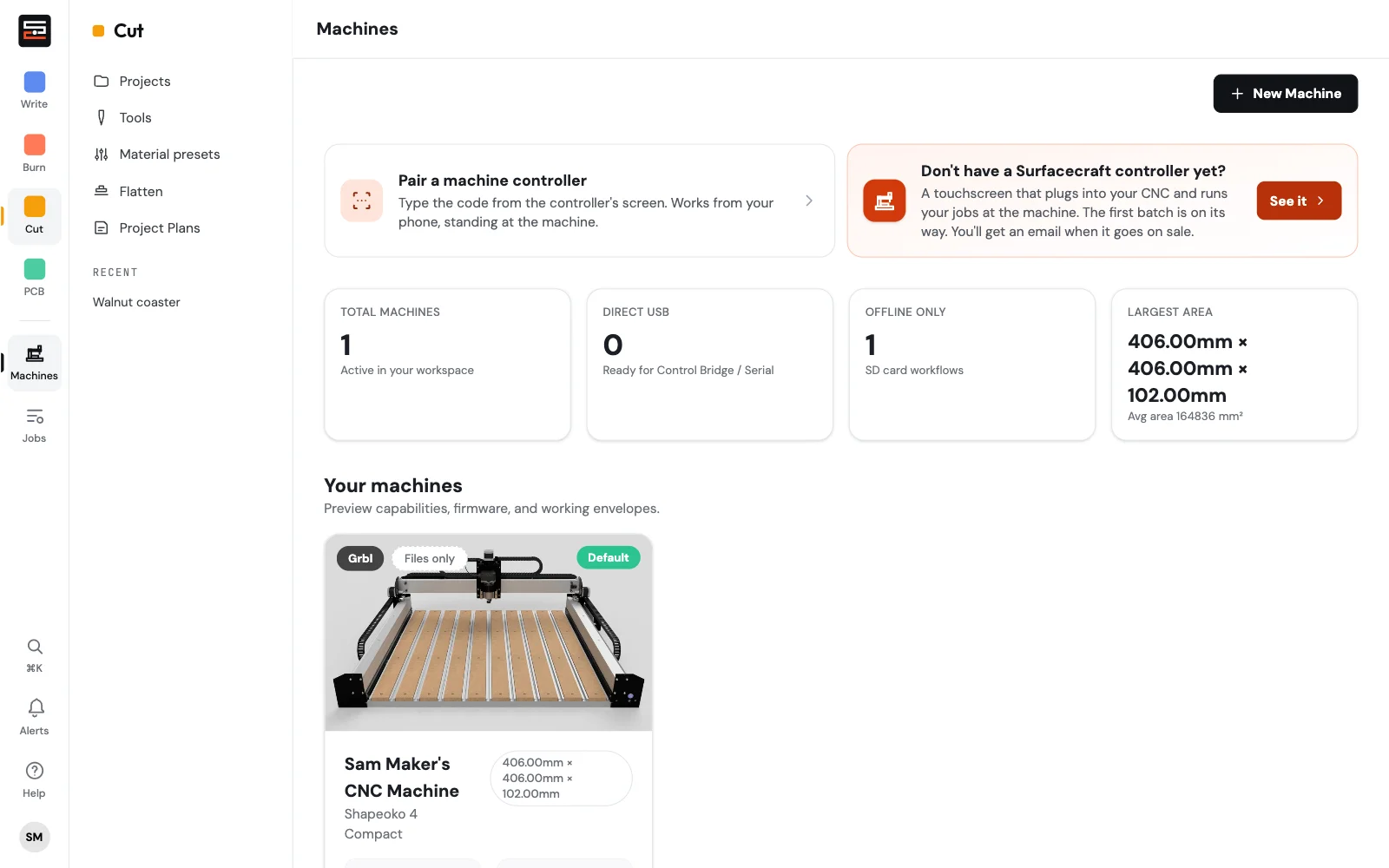
- Your machines shows each machine with its firmware, work area, spindle or laser power, top speed and how it connects. Edit changes any of it.
- Use a machine you already have adds a machine from another studio to this one, for example a router with a laser module in both Cut and Burn.
- Machine catalog has ready-made profiles for popular machines (X-Carve, Shapeoko, LongMill, FoxAlien, Genmitsu, 3018s and more). Click Use preset to add one.
- + New Machine starts one from scratch.
Free includes one machine per studio; Pro has no limit.
Get the numbers right once
The work area and top speed are worth checking against your machine's manual. Surfacecraft keeps every job inside the work area and every feed under the top speed, so a wrong number here shows up in every project.
How jobs reach the machine
Each machine has a connection. Change it on the machine's page.
| Connection | How it works | Plan |
|---|---|---|
| Files only | You download G-code and run it in your usual sender or from an SD card. | Free and Pro |
| USB (from this browser) | The editor's Send to machine streams the job over a USB cable. Chrome or Edge only. | Pro |
| Machine controller | Send to machine sends the job over Wi-Fi to a Surfacecraft Controller at the machine. | Pro |
Sending over USB
- Plug the machine into your computer and open the project in Chrome or Edge (Safari and Firefox can't talk to USB devices).
- Click Send to machine. The first time, the browser asks which serial port to use: pick your machine (often USB Serial or CH340).
- Zero the machine where the job's header says, then start.
Keep the tab open and the computer awake while the job runs.
Downloading G-code
Every editor has Export G-code. Cut Studio and PCB Studio give you one file per bit, numbered in cutting order; see Operations, preview and G-code. Each file starts with a comment header that says which bit to load and where to zero.