

Appearance
Getting started
Surfacecraft is browser CAM for hobby makers. You design, set up toolpaths and send jobs to your machine from one browser tab, on Mac, PC, Linux or Chromebook. There's nothing to install.
This page gets you from a new account to your first project in about five minutes.
1. Create an account
Sign up at surfacecraft.app/register with your email or your Google account. You don't need a card. Every new account starts with a 14-day Pro trial and then moves to Free unless you subscribe.
2. Run setup for your studio
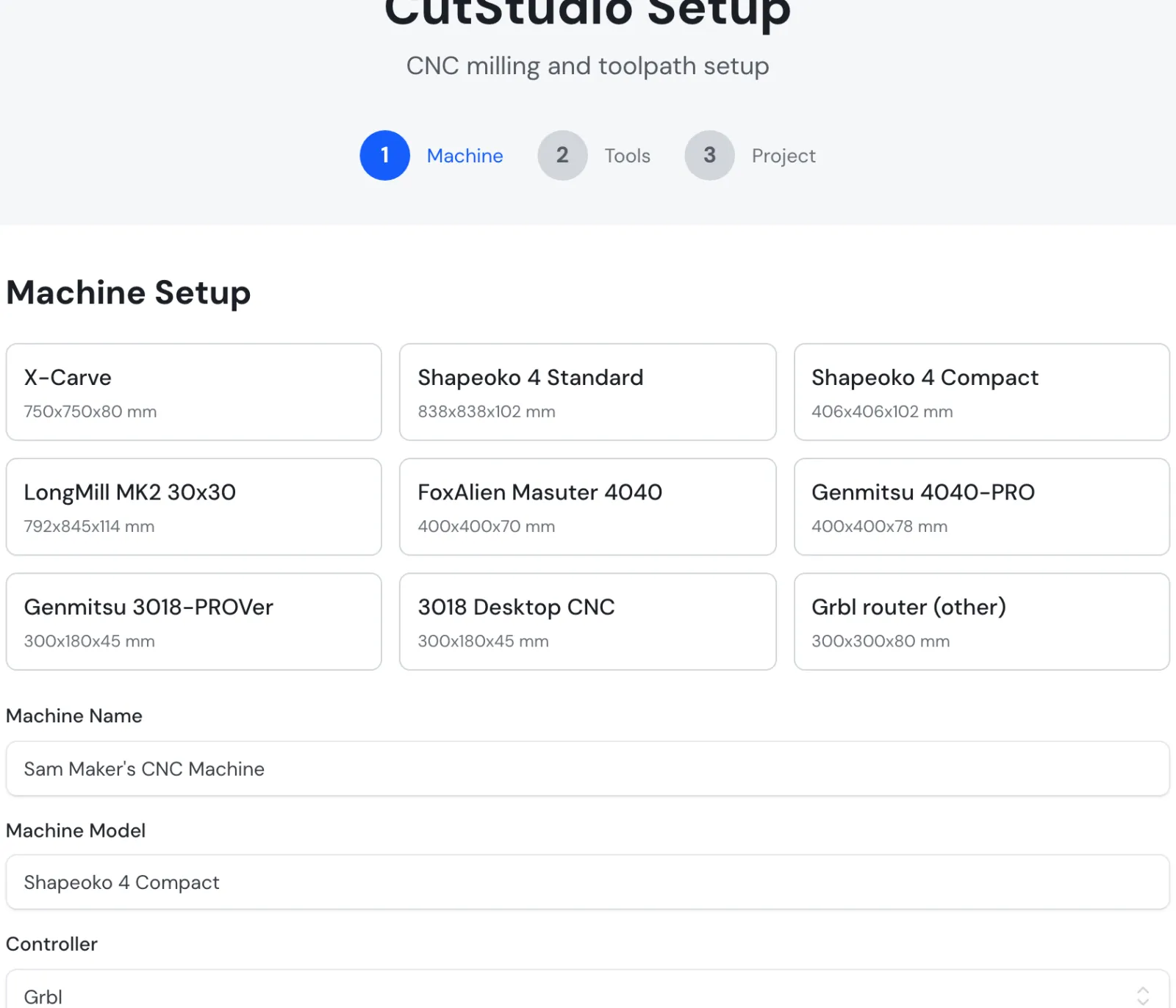
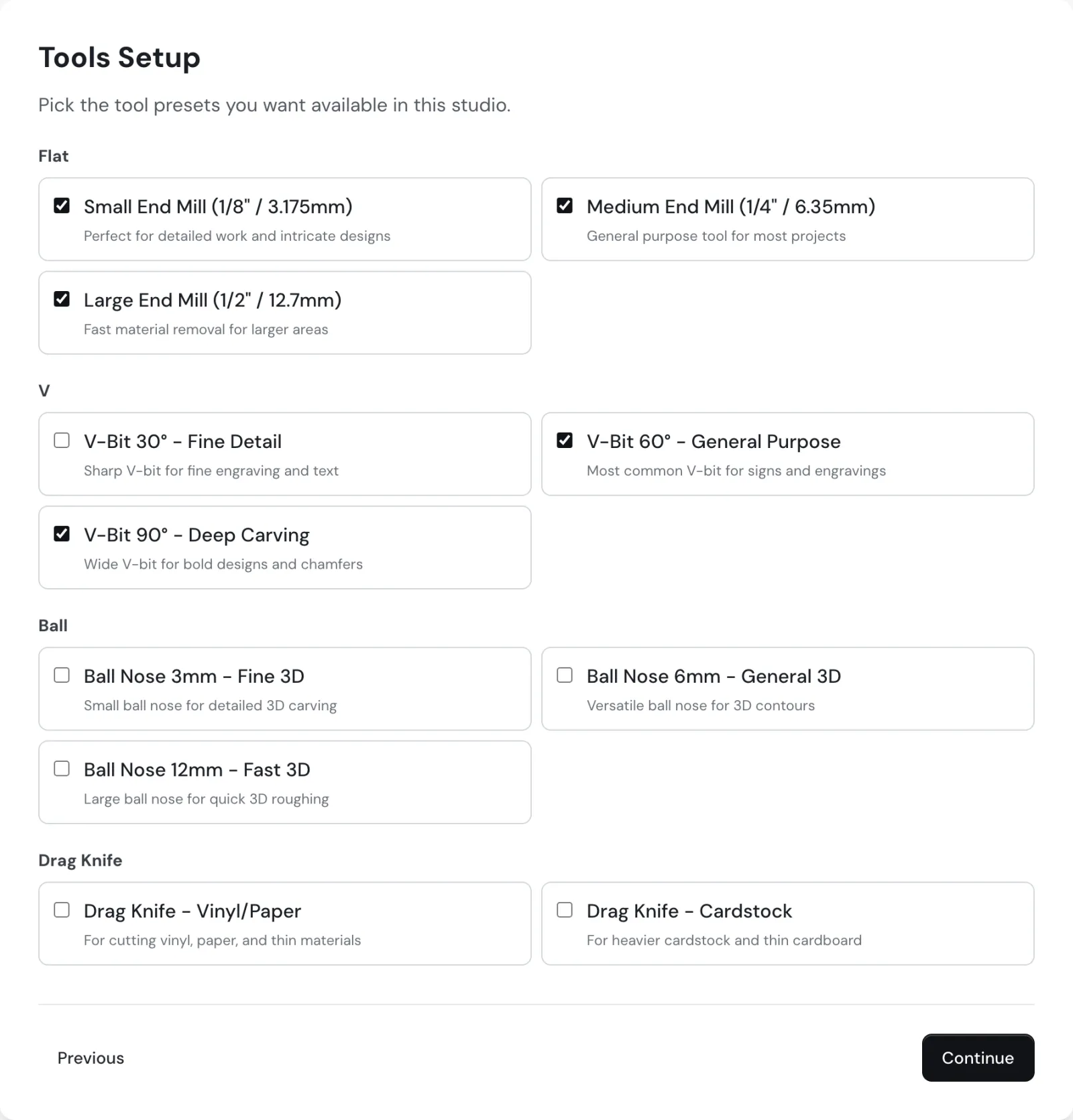
The first time you open a studio, a three-step setup gets it ready: Machine, Tools, Project.
Machine. Click your machine if it's in the list, and its work area fills in. If it isn't, pick the (other) card at the end and type your machine's travel in X, Y and Z. How jobs reach the machine can stay on Files only for now; you can change it later.
Tools. Tick the bits you actually own. You can add, edit and remove bits later on the Tools page.
Project. Pick what you're making, name your first project and click Complete CutStudio Setup (or the same button for your studio). The editor opens with your machine and bits ready.
One studio at a time
Each studio has its own setup. Do the one you need today; the others wait on Home with a Finish setup link.
3. Find your way around
After you sign in you land on Home.
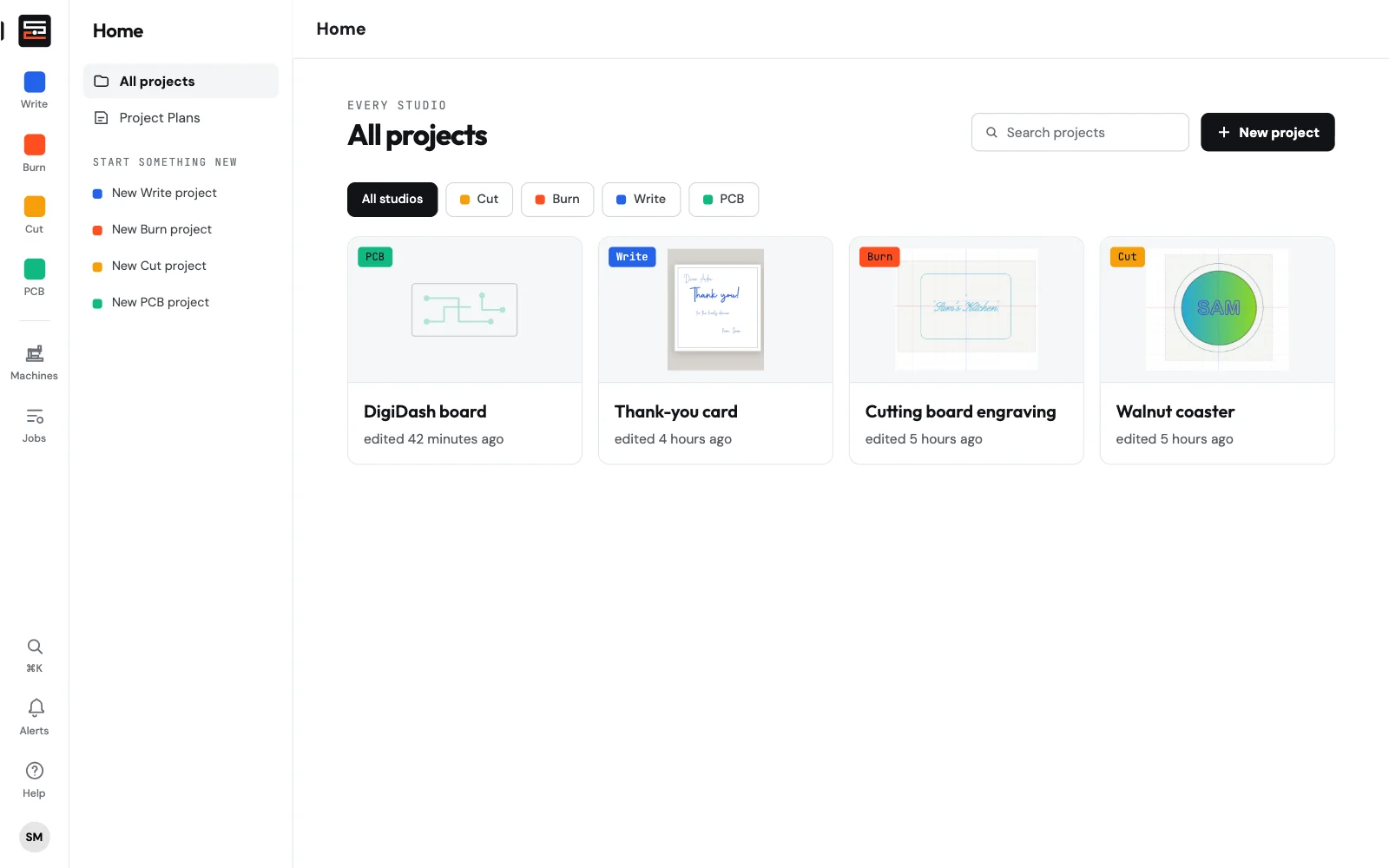
- All projects lists your projects from every studio, newest first. Filter by studio or search by name, and click one to open it.
- New project starts a project in any studio you've turned on. Start something new in the column on the left does the same for one studio.
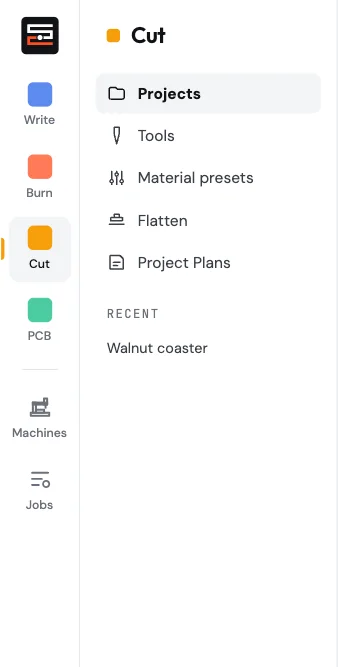
The narrow strip down the left edge is the rail. It's the same on every page:
- The logo takes you back to Home.
- One square per studio (Write, Burn, Cut, PCB) opens that studio's projects.
- Machines and Jobs are your machines and the jobs you've sent to them.
- At the bottom: search (or press ⌘K / Ctrl+K), Alerts, Help, and your account.
Next to the rail, the column shows the pages of where you are. In a studio that's Projects, Tools, Material presets and the like, plus your recent projects in that studio.
4. Make something
Pick a guide for your machine:
| Studio | For | Start with |
|---|---|---|
| Cut Studio | CNC routers and desktop mills | Tutorial: your first coaster |
| Burn Studio | Diode lasers | Burn Studio editor |
| Write Studio | Pen plotters | Write Studio editor |
| PCB Studio | Milling circuit boards | Files and the board |
5. Get the job to your machine
- Download G-code and run it in your usual sender (UGS, Candle, LightBurn's console, an SD card…). Works on every plan.
- Send to machine over USB from Chrome or Edge. Pro.
- Send to a Surfacecraft Controller at the machine. Pro.
See Machines and sending jobs for how to set each one up.
Plans
| Free | Pro | |
|---|---|---|
| Every studio: Cut, Burn, Write and PCB | ✓ | ✓ |
| Projects and G-code downloads | Unlimited | Unlimited |
| Machines | One per studio | Unlimited |
| Send jobs straight to your machine or controller | ✓ | |
| Private projects, commercial use | ✓ | |
| Editor assistant, AI image tools, Project Plans | ✓ | |
| Email support | ✓ |
Current prices are on surfacecraft.app/pricing. Pro is monthly or yearly, and you can cancel anytime: you keep Pro until the end of the period, then move to Free with your projects intact.
On a phone
Surfacecraft on a phone is for checking on things and pairing a controller: projects, machines, pairing and studios are in the bottom tabs. The editors open on a computer or tablet. To open one on a phone anyway, use Open the editor anyway.